Managing devices for a team spread out across different locations can feel like juggling chainsaws. You’ve got laptops in Denver, phones in Portugal, and new hires needing access yesterday. Keeping everything running smoothly and securely without being in the same room is a big ask. That’s where good remote device management software comes in. It’s not just about fixing things when they break; it’s about preventing problems before they start and making sure everyone has what they need, when they need it. This guide looks at how to pick the right tools and what to look for.
Table of Contents
- Evaluating Remote Device Management Software Options
- Key Features of Effective Remote Device Management
- Choosing the Right Remote Device Management Software
- Managing Diverse Device Fleets
- Integrating Remote Device Management into Your Workflow
- Calculating the Total Cost of Ownership
- Testing Critical Remote Management Scenarios
- Security and Compliance in Remote Device Management
- Specialized Remote Device Management Tools
- Building an Essential Remote Management Toolkit
- Wrapping Up
- Frequently Asked Questions
Key Takeaways
- When picking remote device management software, think about what your team actually needs. Do you manage mostly Macs, or is it a mix of everything? Focus on features like easy remote access, automatic updates, and a clear view of all your devices.
- If your company is already deep into Microsoft 365, tools like Microsoft Intune fit right in. For Apple-heavy setups, Jamf or Kandji are worth a look. The goal is to find software that plays nice with what you already use.
- Don’t just look at the monthly price. Factor in the time it takes to set things up and keep them running. Sometimes, a slightly more expensive tool that saves you hours of work is a better deal.
- Testing is super important. Before you commit, try out how well the software handles real-world problems, like remotely wiping a lost laptop or pushing out an urgent security patch. See if it actually works like they say it will.
- Security and keeping things compliant are non-negotiable. Your remote device management software should help you control who can access what, track what’s happening, and stop sensitive data from getting out.
Evaluating Remote Device Management Software Options
So, you’ve got devices scattered everywhere, right? Laptops in different states, phones in other countries, and maybe even some tablets floating around. Trying to keep all that in check without the right tools is like trying to herd cats – messy and mostly ineffective. That’s where remote device management (RDM) software comes in. But with so many options out there, how do you even start picking one? It’s not just about finding the one with the most flashy features; it’s about finding the right fit for your team and your tech setup.
Understanding Core Platform Capabilities
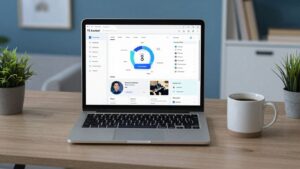
Before you get lost in feature comparisons, it’s good to know what these platforms are generally built to do. At their heart, RDM tools are about giving you a central command center for all your company’s devices, no matter where they are. This means things like being able to see what devices you have, push out software updates, and, of course, get remote access to fix problems when they pop up. Think of it as a digital toolkit that lets you manage your entire device fleet from your desk.


- Centralized Dashboard: A single place to view and manage all your devices.
- Remote Access: Connect to devices to troubleshoot or provide support.
- Software Deployment: Push applications and updates to multiple devices at once.
- Security Features: Tools to lock, wipe, or monitor devices for protection.
The goal is to move away from reactive, time-consuming fixes and towards proactive, automated management that keeps your distributed workforce productive and your data safe.
Prioritizing Key Features for Distributed Teams
When your team is spread out, some features become way more important than others. You’re not just managing a few machines in one office anymore. You need tools that can handle the complexities of distance and different work environments. For instance, being able to set up a new employee’s laptop before they even get it (that’s zero-touch provisioning) saves a ton of hassle. Similarly, automated patching is a lifesaver; you don’t want to be chasing down individuals to update their software.
Here’s what usually tops the list for distributed teams:
- Reliable Remote Access: Quick, stable connections are non-negotiable for timely support.
- Automated Patching & Updates: Keep systems secure without constant manual intervention.
- Zero-Touch Provisioning: Streamline onboarding for new hires, regardless of their location.
- Asset Inventory: Know exactly what devices you have, where they are, and what software is on them.
Assessing Integration Depth and Ecosystem Fit
No RDM tool exists in a vacuum. It needs to play nice with the other software you’re already using. Think about your identity provider (like Okta or Azure AD) for user logins, your ticketing system for support requests, or even your HR software for employee onboarding. A tool that integrates well can automate a lot of tedious tasks. For example, when a new employee is added to HR, the RDM tool could automatically start setting up their device. It’s about making your existing systems work together more smoothly, rather than creating more silos.
Consider these integration points:
- Identity Providers: For user authentication and access control.
- Ticketing Systems: To link device issues directly to support workflows.
- HRIS Platforms: To automate device assignment and de-provisioning based on employee status.
- Cloud Storage/Productivity Suites: For managing software licenses and access.
Key Features of Effective Remote Device Management
When you’re managing devices scattered across different cities, states, or even countries, having the right tools makes all the difference. It’s not just about being able to connect to a machine; it’s about doing it reliably, efficiently, and securely. Let’s break down what really matters in a remote device management (RDM) setup.
Reliable Remote Access and Control
This is the bread and butter of RDM. You need to be able to jump onto a user’s machine, see what they see, and take control to fix problems. Think of it like being able to remotely sit next to someone and guide them through a fix, or just do it yourself if that’s faster. The best tools offer quick, stable connections, even over slower internet links. This means less frustration for both the IT support person and the end-user. It’s about resolving issues in minutes, not hours or days.
Automated Patching and Updates
Keeping all your devices up-to-date with the latest security patches and software updates is a huge task, especially with a distributed team. Manual patching is a recipe for disaster, leaving gaps that attackers can exploit. Effective RDM platforms automate this process. They can push out updates to all devices simultaneously or in scheduled waves, without requiring individual user intervention. This proactive approach is key to maintaining a strong security posture and preventing vulnerabilities before they become a problem.
Zero-Touch Provisioning and Deployment
Getting a new employee set up with a company device used to involve a lot of hands-on IT work. With zero-touch provisioning, a new device can be configured and ready to go right out of the box, often just by the user turning it on and signing in with their company credentials. This is a game-changer for distributed teams, as it drastically reduces the IT overhead for onboarding new hires, no matter where they are located. It streamlines the entire deployment process.
Comprehensive Asset Inventory and Visibility
How many devices do you actually have out there? What software is installed on them? Are they compliant with company policies? Without a clear picture, it’s hard to manage anything effectively. A good RDM tool provides a centralized dashboard that gives you real-time visibility into your entire device fleet. This includes hardware details, software inventories, security configurations, and compliance status. Knowing what you have is the first step to managing it properly and identifying potential risks or issues before they escalate.
Choosing the Right Remote Device Management Software
Picking the right remote device management (RDM) software can feel like a puzzle, especially when your team is spread out. It’s not just about finding a tool with a long list of features; it’s about matching that tool to how your team actually works and the devices they use. Think about your specific needs before you get lost in all the options.
Matching Tools to Fleet Composition
Your company’s device setup is the first big clue. Are you mostly a Windows shop, or do you have a significant number of Macs and iPhones? Some RDM tools are built with specific operating systems in mind. For instance, Jamf is a go-to for managing Apple devices, offering deep control over macOS and iOS features. On the other hand, Microsoft Intune fits right into organizations already using Microsoft 365, making enrollment and management smoother if your users are already logging in with Azure AD accounts.
- Windows-heavy environments: Look for tools with strong Windows management capabilities, like automated patching and deployment features tailored for the Windows ecosystem.
- Apple-centric fleets: Consider solutions that specialize in macOS and iOS, offering granular control and integration with Apple Business Manager.
- Mixed environments: A unified platform that can handle both Windows and macOS (and ideally Linux or mobile devices) will save you a lot of headaches. You’ll want a dashboard that gives you a clear view of everything, regardless of the OS.
Considering Your Existing Technology Stack
Don’t forget about the other software you already use. How well does a new RDM tool play with your current systems? Integration is key here. If your IT team uses a specific ticketing system, like Zendesk or ServiceNow, you’ll want an RDM tool that can connect to it. This means when a support ticket comes in, IT can see device details and even perform actions like locking a device or pushing an update directly from the ticket interface, without switching screens. Similarly, connecting with your identity provider (like Azure AD or Okta) simplifies user management and security.
Integrating RDM tools with your existing IT infrastructure, such as identity providers and ticketing systems, can significantly streamline workflows and reduce manual effort. This interconnectedness allows for quicker responses to issues and a more cohesive IT management experience.
Aligning with Operational Priorities
What are your IT department’s main goals right now? Is it improving security, reducing downtime, or making onboarding new employees faster? Your RDM choice should support these objectives.
- Security Focus: If security is top of mind, prioritize tools with robust features like remote wipe, strong access controls, multi-factor authentication (MFA) enforcement, and detailed audit logs.
- Efficiency & Uptime: For reducing downtime, look for automated patching, proactive monitoring, and reliable remote access for quick troubleshooting.
- Scalability & Onboarding: If you’re growing rapidly, zero-touch provisioning and automated deployment features will be invaluable for getting new hires set up quickly and consistently.
Choosing the right RDM software isn’t a one-size-fits-all decision. It requires a careful look at your devices, your current software, and what you’re trying to achieve operationally. Getting this right means your distributed team can stay productive and secure, no matter where they are.
Managing Diverse Device Fleets
So, your company isn’t just using Windows laptops anymore, huh? Maybe you’ve got a mix of Macs, some iPhones, maybe even a few Android tablets floating around. It happens. Managing a bunch of different device types from one spot can feel like juggling chainsaws, especially when your team is spread out across different cities or even countries. You can’t just walk over to someone’s desk to fix their phone or check their laptop.
Strategies for Heterogeneous Environments
Dealing with a mix of operating systems and device types means you need tools that can actually talk to all of them. Trying to use separate management tools for each platform is a recipe for headaches and wasted time. You’ll end up bouncing between different dashboards, trying to remember where you saw that one setting. It’s way better to find a platform that offers a unified dashboard. This way, you can see and manage your Windows PCs, Macs, and mobile devices all from a single place. Think of it like having one remote control for your entire entertainment system instead of a pile of them.
Here’s a quick look at what you might be dealing with:
- Windows Laptops: The workhorse for many, often managed with tools like Microsoft Intune.
- MacBooks: Popular with creative teams, usually handled by specialized software like Jamf or Kandji.
- iPhones & Android Phones: Essential for communication, requiring mobile device management (MDM) capabilities.
- Tablets: Used for specific roles or as secondary devices, needing similar MDM features.
Apple-Only Fleet Management Solutions
If your organization is all-in on Apple – meaning only Macs, iPhones, and iPads – you’ve got some really powerful, specialized options. Tools like Jamf and Kandji are built from the ground up for Apple’s ecosystem. They offer deep control over macOS and iOS features that generalist tools might miss. This includes things like managing Apple’s own deployment services (like Apple Business Manager) for super smooth setup, fine-grained security settings specific to Apple devices, and even managing app deployment through the App Store in a way that feels natural to Apple users. It’s like having a key that perfectly fits every lock in an Apple-only house.
Unified Dashboards for Cross-Platform Control
Now, for the real challenge: managing everything. This is where unified dashboards shine. Platforms like JumpCloud or Scalefusion aim to bring all your different devices under one roof. You log into one console, and you can see your Windows machines, your Macs, and your mobile devices. This means you can push out software updates, enforce security policies, or even remotely access a device, regardless of its operating system, all without switching between different applications. It simplifies things immensely, cutting down on the time your IT team spends just trying to figure out where to make a change. It’s about getting a clear, bird’s-eye view of your entire device landscape.
When you’re dealing with a mix of devices, the biggest win comes from reducing the number of places you have to look. A unified dashboard means less clicking around, fewer chances for error, and a quicker response time when something goes wrong. It’s not just about convenience; it’s about operational efficiency and security.
Integrating Remote Device Management into Your Workflow
So, you’ve picked out a great remote device management (RDM) tool. That’s awesome. But just having the software isn’t the whole story, right? You’ve got to make it play nice with everything else your IT team uses. Think of it like getting a new smart home gadget – it’s cool on its own, but it’s way better when it talks to your existing speakers and lights.
Connecting with Identity Providers
This is a big one. Your RDM tool needs to know who’s who. When a new employee starts, or someone leaves, you don’t want IT scrambling to figure out which devices belong to whom. Linking your RDM software to your identity provider, like Okta or Azure AD, automates a lot of this. It means when someone logs into their work account, the RDM system can automatically assign the right policies and access levels to their device. This connection is key for managing access controls and multi-factor authentication (MFA) across your fleet. It stops unauthorized users from getting onto company devices and makes sure the right people have the right access, right away.
Streamlining Support with Ticketing Systems
Imagine a user calls with a problem. Right now, your support team might have to jump between your ticketing system, your RDM console, and maybe even an HR system to get all the info. That’s a lot of clicking around and wasted time. Integrating your RDM tool with your ticketing system, like ServiceNow or Jira Service Management, changes that. When a ticket comes in, the RDM system can automatically pull up device details – like its last known location, whether it’s encrypted, or what software is installed. Your support staff can then perform actions, like locking a lost device or pushing an update, directly from the ticket itself. This cuts down support time significantly.
Here’s a quick look at how that might work:
- Ticket Received: A user reports a lost laptop.
- Automated Data Pull: The integrated system pulls the laptop’s last seen location and status from the RDM.
- Identity Verification: The system checks the user’s identity against the identity provider.
- Remote Action: IT can initiate a remote wipe directly from the ticket interface.
- Status Update: The ticket is updated automatically with the action taken and its success.
Switching between different management consoles and support tools eats up valuable time. When you can bring device management actions directly into your existing support workflow, you drastically reduce the back-and-forth. This means faster resolutions for your users and less frustration for your IT team.
Automating Employee Lifecycle Management
Think about the whole journey of an employee’s device. When someone joins, they need a device set up and ready to go. When they leave, that device needs to be secured and wiped. Integrating your RDM with HR systems (like Workday or BambooHR) can automate these processes. When HR marks an employee as starting, the RDM can trigger a device provisioning workflow. When an employee’s status changes to ‘terminated’, the RDM can automatically initiate a remote wipe or lock command. This makes onboarding and offboarding much smoother and more secure, especially with distributed teams where physical access isn’t always an option.
Calculating the Total Cost of Ownership
Figuring out the real cost of remote device management software goes beyond just the sticker price. You’ve got to look at the whole picture, from the initial setup to what it costs to keep things running year after year. It’s easy to get caught up in the monthly fees, but those are often just the tip of the iceberg.
Understanding Per-Device vs. Per-User Pricing
When you start shopping around, you’ll see two main ways companies charge: per device or per user. Which one makes more sense really depends on how your team is set up.
- Per-Device Pricing: This is pretty straightforward. You pay a set amount for each individual computer, phone, or tablet that the software manages. It’s often a good fit if your company owns all the devices and you have a pretty good idea of how many you’ll have. Think of it like buying licenses for each piece of hardware.
- Per-User Pricing: Here, you pay for each person using the software, regardless of how many devices they have. This can be a better deal if your employees use multiple devices (like a work laptop and a personal phone for work apps) or if you have a lot of contractors or temporary staff. It’s also common in Bring Your Own Device (BYOD) setups.
It’s worth doing a quick calculation based on your current setup and expected growth to see which model saves you more money over time.
Factoring in Implementation and Overhead Costs
Don’t forget the costs that aren’t part of the monthly bill. Getting new software up and running can take a surprising amount of time and effort.
- Setup Time: How long will it take your IT team to get everything configured? This includes setting up policies, integrating with other tools, and testing. For larger setups, you might even need to bring in outside consultants, which adds another layer of expense.
- Ongoing Management: Once it’s running, who’s going to manage it day-to-day? You’ll need someone to handle new employee onboarding, troubleshoot issues, and keep an eye on updates. This takes up valuable time that your IT staff could be spending on other projects.
- Training: Does your team need training on the new software? Factor in the cost of courses or the time spent learning the ropes.
Projecting Long-Term Device Management Expenses
When you’re thinking about the total cost, it’s smart to look ahead at least three years. Device management costs aren’t static.
Consider these factors:
- Device Growth: How many new devices do you expect to add each year? Even a small percentage increase can add up over time.
- Hardware Refresh Cycles: Companies usually replace hardware every few years. Will your management software still be compatible and cost-effective with newer devices?
- Potential Add-ons: Some software might have extra features or modules you might need down the line, which could increase costs.
Thinking about the total cost of ownership means looking beyond the initial purchase price. It’s about understanding the ongoing expenses, the time investment required, and how the software scales with your business. A seemingly cheaper option upfront could end up costing more if it requires significant extra resources to manage or doesn’t grow with your needs.
Here’s a rough idea of what to consider:
| Cost Category | Typical Range (Estimate) | Notes |
|---|---|---|
| Software Subscription | Varies widely | Per-device or per-user |
| Implementation/Setup | 40-80 hours | Can be higher with consultants |
| Ongoing Admin Overhead | 5-10 hours/week | For a medium-sized IT team |
| Training | Variable | Depends on software complexity |
| Integration Costs | Variable | If connecting to many other systems |
| Hardware Refresh | N/A | Indirect cost, but impacts software needs |
Testing Critical Remote Management Scenarios

Vendor demos are great and all, but they usually show off the shiny, perfect-case scenarios. What happens when things go sideways? That’s where testing comes in. You really need to put your chosen tools through their paces to see how they handle the messy stuff. It’s not just about seeing if a feature works, but how well it works when you’re under pressure or dealing with a weird setup.
Validating Remote Wipe Capabilities
Losing a device, whether it’s misplaced or stolen, is a major headache. Your first thought is probably, "Can I wipe it?" You need to confirm that the remote wipe function actually works, and works fast. Test this by simulating a lost device scenario. Can you initiate a wipe from your admin console and have it execute successfully, even if the device is offline for a bit and then comes back online? It’s also smart to check if you can wipe specific data or the entire device, depending on your security policy. This is your last line of defense against data breaches.
Testing Emergency Patching Under Pressure
When a critical vulnerability drops, you don’t have time to wait. You need to know if your RDM tool can push out an emergency patch to your entire fleet, or at least a targeted group, quickly and reliably. Set up a test where you simulate a zero-day exploit. How long does it take from identifying the patch to deploying it? What’s the success rate? Does it handle devices that are offline at the time of deployment gracefully, ensuring they get patched once they reconnect? You don’t want to find out your patching system is flaky when the news is all over the internet.
Troubleshooting Compliance Issues Remotely
Compliance isn’t just a buzzword; it’s often a legal requirement. Devices need to meet certain security standards, like having up-to-date antivirus or specific firewall settings. When a device falls out of compliance, you need to be able to diagnose and fix it remotely. Try intentionally making a test device non-compliant. Can your RDM tool identify the issue? More importantly, can you push the necessary configuration changes or software updates to bring it back into compliance without needing to physically touch the machine? This saves a ton of time and keeps your audit reports looking good.
Real-world testing means building a small lab environment that mimics your actual fleet. Use different operating systems, hardware models, and even simulate various network conditions. This way, you’re not just testing the software; you’re testing how it performs in the unique environment your team actually works in. It’s about finding those little glitches before they become big problems.
Security and Compliance in Remote Device Management

Keeping your company’s data safe when devices are all over the place is a big deal. It’s not just about having the latest software; it’s about making sure the right people can access the right things and that nobody can get to stuff they shouldn’t. When your team is spread out, you can’t just walk over and check if a laptop is locked or if someone’s installed something they shouldn’t have. That’s where good remote management tools really shine.
Enforcing Access Controls and MFA
Think of access controls like a bouncer at a club. Not everyone gets in, and only certain people can go to the VIP section. For remote devices, this means setting up rules so only authorized users can access company data, and only from approved devices. Multi-factor authentication (MFA) is like having a second ID check. It requires more than just a password – maybe a code from a phone app or a fingerprint. This makes it much harder for unauthorized folks to get in, even if they somehow steal a password.
- Role-Based Access: Assign permissions based on a user’s job. A marketing person doesn’t need access to engineering code, right?
- Device Compliance Checks: Ensure devices meet security standards (like having up-to-date antivirus) before allowing access.
- Conditional Access Policies: Set rules like
Specialized Remote Device Management Tools
Solutions for External or Unmanaged Users
Sometimes, you need to help people who aren’t on your company’s payroll or using company-issued devices. Think contractors, temporary staff, or even customers needing support. Standard RDM tools might not cover these scenarios well because they’re built for devices you fully control. Tools like LogMeIn Rescue or TeamViewer are often good here. They focus on quick, on-demand support sessions. You can send a link or code to the user, and they can grant temporary access to their machine for troubleshooting. It’s about providing ad-hoc assistance without needing to install management agents beforehand.
Tools for Ad-Hoc Remote Support
This category overlaps a bit with the previous one, but it’s worth highlighting. Ad-hoc support tools are designed for those quick, unexpected help requests. They prioritize ease of use for both the IT support person and the end-user. The goal is to get a connection established fast, fix the immediate problem, and then disconnect. There’s usually no persistent agent running in the background. This keeps things simple and avoids potential privacy concerns for users who aren’t company employees. Think of it as a digital house call.
Platforms for Cloud-Based and Mobile Environments
As more work moves to the cloud and mobile devices become standard issue, RDM needs to adapt. Platforms that focus on cloud-based management, like Microsoft Intune, are built for this. They can manage devices regardless of their physical location, as long as they have an internet connection. Mobile Device Management (MDM) features are also key here, letting you control settings, apps, and security policies on smartphones and tablets. This is especially important for BYOD (Bring Your Own Device) policies.
Here’s a quick look at what these specialized tools often offer:
- On-Demand Access: Initiate support sessions with a simple link or code.
- No Pre-installed Agents: Users don’t need to have management software already on their devices.
- Cross-Platform Support: Often work across Windows, macOS, iOS, and Android.
- Session Recording: For auditing or training purposes.
- File Transfer: Easily send or receive files during a support session.
When choosing a tool for external or ad-hoc support, consider how easy it is for the person you’re helping to get started. If they have to download and install complex software, they might get frustrated before you even begin troubleshooting.
Building an Essential Remote Management Toolkit
Look, nobody wants a toolbox overflowing with gadgets they never use. For small IT teams, especially, it’s about having the right tools for the job, not just a mountain of them. We’re talking about getting solid coverage without making your life more complicated. It’s about picking a few key players that work well together.
Curated Selections for Small IT Teams
If you’re running a lean IT department, you probably feel the pressure to do more with less. The goal here is to assemble a set of tools that cover your bases without breaking the bank or your sanity. Think of it as building a high-performance team with just a few star players.
Here’s a look at what a minimal, effective toolkit might include:
- Endpoint Management & Security: A core platform that handles patching, software deployment, and basic security. Something like Microsoft Intune can be a good starting point if you’re already in the Microsoft ecosystem.
- Remote Support: For those times you need to jump onto a user’s machine, especially if it’s not company-managed. TeamViewer is often mentioned for this.
- Communication: Keeping the team connected is vital. Slack is a popular choice for quick chats and updates.
All-in-One Solutions for Endpoint Management
Sometimes, you just want one tool that does most of the heavy lifting. These platforms aim to consolidate many IT management tasks into a single interface. They can simplify things a lot, especially when you’re juggling multiple responsibilities. The trick is finding one that actually does what you need it to do without being overly complex or expensive.
The best all-in-one solutions offer a balance. They provide robust features for monitoring, patching, and deployment, but also keep the user interface clean and easy to navigate. This means less time spent figuring out the software and more time actually managing devices.
Complementary Tools for Enhanced Support
Even with a great core platform, there are always gaps. That’s where complementary tools come in. Maybe you need something specialized for handling external users or a tool that offers deeper network monitoring. Adding these specific tools can round out your capabilities without turning your setup into a tangled mess. It’s about smart additions, not just more software.
For instance, if your core tool handles internal devices well but struggles with BYOD or contractor machines, a dedicated remote support solution becomes a must-have. It’s about filling those specific needs that arise in day-to-day operations.
Wrapping Up
So, picking the right remote device management tools really comes down to what your team needs. It’s not about having the most features, but the right ones. Whether you’re a small crew trying to keep things running smoothly or a bigger operation with devices scattered everywhere, there’s a solution out there. Think about your budget, what kind of devices you have, and how much support your team actually needs. Getting this setup right means fewer headaches for IT and a more productive team, no matter where they’re working from. It’s definitely worth the effort to find that sweet spot.
Frequently Asked Questions
What exactly is remote device management software?
Think of it like a remote control for all the computers and phones your company uses, no matter where they are. This software lets IT people see and fix devices from far away, making sure everything runs smoothly.
Why is this important for teams that work from home?
When people work from different places, it’s hard for IT to help them if something goes wrong. This software lets them fix problems quickly without needing to be there in person, saving time and hassle.
Can these tools help keep company information safe?
Yes, they’re a big help! They can lock down lost or stolen devices, make sure software is up-to-date with the latest security fixes, and control who can access what, which is super important for safety.
Does this software work for all kinds of devices, like iPhones and Androids too?
Many tools can manage different types of devices, like Windows computers, Macs, and even phones. Some are better for specific brands, like Apple, but there are ways to manage a mix of devices from one place.
How do these tools help when setting up a new employee?
They make it much easier! New computers can be set up automatically with all the right apps and settings before the employee even touches them. This is called ‘zero-touch provisioning’ and it speeds things up a lot.
Is it hard to learn and use this kind of software?
It can vary. Some tools are simpler and designed for smaller IT teams, while others have more features and might need more training. It’s best to pick one that fits your team’s skill level and what you need it to do.
How much does this kind of software usually cost?
The price can be based on how many devices you have or how many people are using them. You also need to think about the cost of setting it up and keeping it running over time, not just the monthly fee.
Can I try out a tool before buying it?
Most companies offer free trials. This is a great way to test the software with your own devices and see if it really does what you need it to do before you commit to buying it.