Finding the right project tracking and collaboration tools can really make a difference in how your team gets things done. It’s not just about keeping an eye on deadlines, but also about making sure everyone’s on the same page, sharing ideas easily, and actually enjoying the process. I’ve checked out a bunch of these tools, and some really stand out for helping teams work together smoothly, whether you’re all in the same office or spread out across the globe. Let’s look at some of the top contenders that can help streamline your projects and boost teamwork.
Table of Contents
- 1. Wrike
- 2. Rocketlane
- 3. Miro
- 4. Mural
- 5. Trello
- 6. ClickUp
- 7. Jira
- 8. Asana
- 9. Monday.com
- 10. Smartsheet
- 11. Basecamp
- 12. Zoho Projects
- 13. Teamwork
- 14. Microsoft Planner
- 15. Google Workspace
- 16. Slack
- 17. Notion
- 18. Airtable
- 19. Favro
- 20. ProofHub
- 21. MeisterTask
- 22. Todoist
- 23. Any.do
- 24. Taskade
- 25. Quip and more
- Wrapping It Up
- Frequently Asked Questions
Key Takeaways
- Many project tracking and collaboration tools offer features like task management, document sharing, and communication channels to keep teams aligned.
- Integration with other software, like calendars and CRMs, can help streamline workflows and reduce manual data entry.
- Visual tools such as Kanban boards and Gantt charts are helpful for understanding project progress at a glance.
- User permissions and reporting features are important for security and for understanding team performance.
- Mobile access is key for teams that need to stay connected and productive while on the go.
1. Wrike
Wrike is a pretty robust project management tool that’s been around for a while. It’s designed to be super flexible, meaning you can really tweak it to fit how your specific team works, which is a big plus if you’ve got unique processes. It’s particularly good for teams that need a lot of control over their workflows and want to automate repetitive tasks.
One of the things that makes Wrike stand out is its customization. You can build out dashboards that show exactly what each team member or the whole project needs to see. Think widgets for active tasks, status updates, or even overdue items. It’s like having a control center tailored just for your project.

When it comes to managing tasks, Wrike goes pretty deep. You can create custom item types, which is handy if your projects have different kinds of work that need tracking. Plus, it supports various project management styles, from Waterfall to Agile methods like Scrum and Kanban.

Here’s a quick look at some of its strengths:
- Customizable Workspaces: Build dashboards and views that match your team’s needs.
- Advanced Automation: Set up rules to handle routine tasks automatically.
- Centralized Hub: Keep all project-related work and communication in one place.
- Streamlined Approvals: Speed up the review process for deliverables.
Wrike’s ability to adapt to different business models and project management strategies makes it a solid choice for project managers juggling multiple projects. While some find the interface a bit plain, the core features for tracking tasks, deliverables, and progress are strong. It offers a more detailed approach to resource allocation compared to some other tools.
It does have a bit of a learning curve, and with all the features, it can sometimes feel a bit overwhelming, especially if you’re new to project management software. But if you’re looking for a tool that can grow with your team and handle complex projects, Wrike is definitely worth checking out. They also have a free plan to get you started.
2. Rocketlane
Rocketlane is a tool that really shines when you’re trying to get new clients onboarded or manage service delivery. It’s built to make those specific processes smoother, which is a big deal for many businesses.
It’s particularly good at automating workflows and giving you a clear picture of what’s happening in real-time. This means less manual work and fewer surprises. The platform uses dynamic templates, which are super helpful for setting up projects quickly and consistently. You can also integrate it with your CRM, making the handover from sales to the project team much easier.
Here’s a quick look at what makes Rocketlane stand out:
- Dynamic Templates: Easily customize project setups for different clients or services.
- Automated Workflows: Reduce repetitive tasks and keep projects moving.
- 360° Project Visibility: Track tasks, spot potential problems, and manage milestones all in one place.
- CRM Integration: Connects with tools like Salesforce and HubSpot for a unified view.
While it’s powerful, some users find the initial setup a bit involved. It’s not the best if you need to work offline a lot, as it’s primarily an online tool.
Rocketlane focuses on making the client-facing parts of project management, like onboarding and service delivery, as straightforward as possible. It aims to reduce the friction points that often come up during these critical stages of a client relationship.
3. Miro
Miro is basically an online whiteboard, but calling it just that feels like a bit of an understatement. It’s more like a giant, digital canvas where teams can really let their ideas run wild. Think brainstorming sessions, mind mapping, planning out projects visually, or even just sketching out concepts. It’s especially good for teams that aren’t all in the same room, helping everyone feel connected and on the same page.
What makes Miro stand out is how much you can do with it. It’s packed with features, but somehow, it doesn’t feel overwhelming. There are tons of templates to get you started, which is super helpful when you’re not sure where to begin. You can use it for all sorts of things, from creating flowcharts to planning out a product roadmap.
- Visual Collaboration: It’s all about seeing things together. Everyone can jump in, add sticky notes, draw, and comment in real-time.
- Templates Galore: Need to run a retrospective? Plan a sprint? There’s probably a template for that.
- Integrations: Miro plays nice with a lot of other tools you might already be using, like Slack or Jira, which keeps everything flowing smoothly.
- Accessibility: You can access it from pretty much anywhere, on different devices.
Miro is a fantastic tool for teams that thrive on visual thinking and need a flexible space to collaborate. It’s not just about putting ideas down; it’s about building on them together, no matter where your team members are located. The sheer variety of templates and the ease with which you can customize the board make it a go-to for creative problem-solving and project planning.
While it’s great for real-time work, it also handles asynchronous collaboration well. You can leave comments, add tasks, and revisit boards later. It’s a pretty solid option if your team needs a digital space to think, plan, and create together.
4. Mural
Mural is a bit different from the usual project management apps. It’s really built for visual collaboration, which means it’s great for teams that do a lot of brainstorming, design work, or just need a shared space to map things out visually. Think of it like a giant digital whiteboard where everyone can draw, write, and organize ideas together in real-time.
It shines when you need to get creative and collaborative.
Mural comes with a ton of templates to get you started. Some are for typical project planning, but others are more for team building or icebreakers, which is kind of neat. It feels less like a rigid task list and more like a flexible studio space. You can easily bring in sticky notes, diagrams, images, and text, arranging them however makes sense for your project. It’s a good option if your team struggles with abstract concepts and benefits from seeing things laid out.
Here’s what makes it stand out:
- Visual Brainstorming: Perfect for generating and organizing ideas.
- Real-time Collaboration: Multiple users can work on the same board simultaneously.
- Template Library: Offers a wide variety of pre-built frameworks for different needs.
- Integrations: Connects with other tools you might already use, like Microsoft 365.
Mural’s focus on visual interaction makes it a strong contender for teams that think and work best through diagrams, flowcharts, and shared visual canvases. It’s designed to make complex ideas more accessible and collaborative.
If your team is spread out or you just want a more engaging way to plan and ideate, Mural could be a really good fit. It helps make sure everyone’s on the same page visually, which can prevent a lot of misunderstandings down the line. It’s a solid tool for visual project planning and keeping creative energy flowing.
5. Trello
Trello is one of those tools that just makes sense visually. It uses a board, list, and card system that’s super easy to grasp, even if you’re not a project management guru. Think of a board as your project, lists as the stages of that project (like ‘To Do’, ‘Doing’, ‘Done’), and cards as individual tasks. You can drag and drop cards between lists as you work through them. It’s a really straightforward way to see where everything stands at a glance.
What I like is how simple it is to get going. You can set up a board and start adding tasks in minutes. Plus, you can add all sorts of details to each card – checklists, due dates, attachments, and comments. This makes it great for keeping all the information about a specific task in one place. It’s also good for teams because you can assign members to cards and use @mentions in comments to talk directly to people about their tasks.
Trello really shines when you need a clear, visual way to manage tasks and workflows. It’s not the best for super complex, long-term projects with lots of dependencies, but for day-to-day tasks and smaller projects, it’s hard to beat its simplicity and ease of use. It’s a tool that helps teams stay organized without getting bogged down in complicated features.
One of Trello’s neat features is its ‘Power-Ups’. These are like add-ons that let you connect Trello with other apps or add more functionality, like calendar views or more advanced automation. Speaking of automation, Trello has a built-in feature called Butler that can automate repetitive actions. For example, you could set it up so that when a card is moved to the ‘Done’ list, a comment is automatically added. This saves a lot of manual clicking.
Here’s a quick look at some of its strengths:
- Visual Workflow: The Kanban board style makes it easy to see project progress.
- Simplicity: Very low learning curve, making it accessible for everyone.
- Collaboration: Good for assigning tasks and communicating within cards.
- Customization: Power-Ups and Butler automation add flexibility.
While Trello is fantastic for many things, it might not be the best fit if your projects are extremely complex with many interconnected parts. For those situations, you might need something with more robust timeline or dependency features. But for general task management and keeping teams on the same page, Trello is a solid choice.
Pricing:
| Plan | Price (per person/month, billed annually) | Free Account |
|---|---|---|
| Free | $0 | Yes |
| Standard | $5 | No |
| Premium | $10 | No |
| Enterprise | $17.50 | No |
6. ClickUp
ClickUp really tries to be an all-in-one solution, which is pretty ambitious. They aim to cut down on the number of different apps teams need to juggle for project management. It’s packed with features, almost to a fault sometimes, but that means you can probably configure it to do exactly what you need.
One of the standout features is its native time tracking. This is super handy for knowing where your team’s hours are actually going, especially for billable work. It’s not just a basic timer; you can set it up with custom statuses and workflows to match your project’s needs. This really helps with resource management, giving you a clearer picture of who’s doing what and how long it’s taking.
ClickUp also offers some pretty detailed reporting. You can pull reports on project progress, how the team is performing, and how resources are being used. These can be exported in a few different formats, which is convenient. It’s a tool that’s constantly evolving, with a lot of customization options available through what they call ‘ClickApps’.
While ClickUp offers a ton of functionality, some users find it has a bit of a learning curve. It’s not always the most intuitive tool right out of the box, and stability can sometimes be an issue, especially with larger teams. Customer support is also limited to chat and email, so if you need immediate phone help, you might be out of luck.
Here’s a quick look at some of its strengths:
- Customization: You can tailor workflows, custom fields, and views to fit your team’s specific process.
- Time Tracking: Built-in time tracking helps monitor project hours and billable time.
- Task Management: Offers various views like lists, boards, calendars, and Gantt charts for organizing tasks.
- Integrations: Connects with many other popular tools your team might already be using, like Slack.
ClickUp has a free plan that’s quite generous, offering unlimited tasks and members, though storage is limited. Paid plans start at a reasonable price per user per month, making it a competitive option, especially for growing teams that need more advanced features. It’s definitely worth checking out if you’re looking for a highly adaptable platform to manage your projects.
7. Jira
Jira is a really popular choice, especially if your team is into Agile methodologies like Scrum or Kanban. It was originally built for software development and tracking bugs, but it’s grown a lot since then. Now, lots of different kinds of teams use it for managing projects and keeping an eye on progress. It’s particularly strong when it comes to issue tracking and managing complex workflows.
What I like about Jira is how it fits into the whole Atlassian ecosystem. If you’re already using other Atlassian tools like Confluence, they tend to work together pretty smoothly. This means you can link project documentation right to your Jira tasks, which is super handy.
Jira offers some great features for Agile teams:
- Customizable Boards: You can set up Scrum or Kanban boards to visualize your workflow exactly how you want it.
- Backlog Management: Easily prioritize and organize your tasks and user stories.
- Sprint Planning Tools: Facilitates the planning and execution of development sprints.
- Agile Reporting: Built-in reports like burndown charts and velocity charts give you a clear picture of your team’s performance without needing extra add-ons.
The flexibility in customizing workflows is a big plus. You can tweak Jira to match your team’s specific processes, which is something you don’t always find in other tools. This adaptability makes it suitable for a wide range of projects, not just software development.
Jira also has a ton of integrations available through the Atlassian Marketplace, so you can connect it with other tools you might be using. This helps keep everything centralized. You can check out some of the available integrations to see how it might fit with your current setup.
8. Asana
Asana is a project management tool that really focuses on making teamwork smoother. It’s built for teams that need to keep track of projects and how work gets done. The cool thing about Asana is its flexibility; you can really set it up to fit how your team works, but it does take a little time to figure out the best way to organize everything.
One of the standout features is how easy it is to switch between different views – like a list, a board, or a timeline. This makes it pretty simple to see your projects from different angles without a lot of clicking around. It’s great for teams that want to simplify their workflow and manage tasks without a steep learning curve.
Asana also has this neat feature called "multi-homing" tasks. Basically, you can add one task to multiple projects or sections. This is super handy when different people or teams need to see and work on the same task, keeping everyone in the loop.
Here’s a quick look at what Asana offers:
- Task Management: Assign tasks, set due dates, and track progress.
- Multiple Project Views: Choose from List, Board, Timeline (Gantt), and Calendar views.
- Collaboration: Comment on tasks, share files, and get updates.
- Customization: Create custom fields and templates to fit your specific needs.
- Reporting: Get insights into project progress and team workload (available on higher tiers).
Asana is designed to be user-friendly, which is a big plus. It aims to provide a clean interface so that people with different tech skills can use it effectively. While it has a free plan for up to 10 people, more advanced features like workload management and extensive automation are part of the paid plans.
When it comes to pricing, Asana has a few tiers. The free plan is a good starting point, but if you need things like Gantt charts, custom project templates, or the workload feature, you’ll need to look at their paid options. The Starter plan, for example, adds the Gantt view and more automations, while the Advanced plan unlocks the workload feature and more robust reporting.
| Plan | Price (per user/month, billed annually) | Key Features Added |
|---|---|---|
| Free | $0 | Basic views (List, Board, Calendar), up to 10 teammates |
| Starter | $10.99 | Gantt view, custom templates, Asana Intelligence, 250 automations/month |
| Advanced | $24.99 | Workload view, goal setting, 25,000 automations/month, time tracking, advanced reporting |
| Enterprise | Custom Pricing | Resource management, advanced security, premium support |
9. Monday.com
Monday.com really stands out as a super flexible platform. It’s not just for project management; it can handle a lot more, which is pretty cool. You can customize pretty much everything, from how your boards look to the specific columns you need, like timelines or status updates. This makes it easy to see exactly what’s going on with your projects at a glance.
It’s also got some neat automation features. You can set up rules to handle repetitive tasks, like sending out notifications or updating statuses automatically. This can save a ton of time and cut down on those little mistakes that happen when you’re doing things manually. Plus, the way it handles collaboration is pretty straightforward. You can comment on tasks, share files, and keep everyone in the loop right within the platform.
Here’s a quick look at how some of its features stack up:
- Customizable Workflows: Tailor boards and columns to fit your specific project needs.
- Automation: Set up rules to automate repetitive tasks and streamline processes.
- Collaboration: Features like shared boards, task comments, and file sharing keep teams connected.
- Visual Dashboards: Get real-time insights into project progress and health.
While monday.com is incredibly adaptable and powerful, it might be a bit much for very small teams or individuals just starting out. The cost can add up, especially if you need more advanced features or have a larger team. It also has a bit of a learning curve, so be prepared to spend some time getting to know all its capabilities.
It’s a solid choice for businesses that need a lot of customization and want a central hub for managing various aspects of their work, not just projects. They even offer other products like a CRM, which shows how broad their platform is.
10. Smartsheet
Smartsheet is a project management tool that really shines when your team has a lot of repetitive tasks. It’s not the absolute easiest thing to get the hang of right away, but the payoff in saved time and effort is usually well worth the initial learning curve. Think of it as a super-powered spreadsheet that can actually manage projects and automate a good chunk of your team’s busywork.
The real magic of Smartsheet lies in its automation capabilities. You can set up simple "if this, then that" rules. For instance, when a new client fills out an intake form, Smartsheet can automatically notify the team manager and assign a follow-up task to a junior team member, complete with a deadline. This kind of automation frees up your team to focus on more complex, less rote work.
Here’s a quick look at what Smartsheet offers:
- Customization: It’s incredibly flexible, allowing you to tailor it to your specific project needs.
- Automations: Streamline workflows by setting up automated actions based on triggers.
- Resource Management: Robust options are available, especially for business plan users, to keep track of who’s doing what.
- Integrations: Connects with other tools you might already be using.
While it’s powerful, it does have a few quirks. Some users find that pages don’t always update instantly or save as frequently as they’d like. Also, if you’re looking for built-in time tracking or invoicing tools, you won’t find them directly within Smartsheet.
Smartsheet is a solid choice for organizations that need to manage projects at scale and want to automate a significant portion of their daily operations. Its adaptability means it can grow with your team, making it a long-term solution rather than just a quick fix.
11. Basecamp
Basecamp is a project management tool that really focuses on keeping things straightforward. It’s built for teams that want a central place to communicate and manage their work without getting bogged down in too many complicated features. Think of it as a digital office space where you can chat, share files, and keep track of what needs to get done.
It’s best for teams who prefer a structured approach to collaboration without a steep learning curve.
Basecamp organizes your projects into distinct sections. You’ve got message boards for discussions, a to-do list for tasks, a schedule for deadlines, and a place to store all your important files and documents. It also has a real-time chat feature called ‘Campfire’ for quick conversations. Recently, they’ve even added a Kanban-style view to help visualize tasks.
Here’s a quick look at what you get:
- Message Boards: For ongoing discussions and updates related to specific projects.
- To-dos: Simple task lists that can be assigned and tracked.
- Schedule: A calendar to keep track of important dates and deadlines.
- Docs & Files: A central repository for all project-related documents.
- Campfire: A group chat for real-time communication.
Basecamp aims to simplify team collaboration by providing a clear, organized structure. It’s designed to reduce the need for constant meetings and endless email chains, making it easier for everyone to stay on the same page. The focus is on clear communication and task management, making it a solid choice for many types of teams.
While it doesn’t have the extensive reporting or capacity planning features of some other tools, its strength lies in its simplicity and ease of use. It’s a good option if your team needs a reliable place to organize projects and communicate effectively without a lot of fuss.
12. Zoho Projects
Zoho Projects is a solid choice if you’re looking for a project management tool that doesn’t break the bank but still packs a punch. It’s particularly good for small to medium-sized businesses that are growing and need something that can keep up. I found its interface pretty straightforward, which is always a plus when you’re trying to get a team on board without a huge learning curve.
One of the things that really caught my eye was the task automation capabilities. You know, those little repetitive tasks that eat up your day? Zoho Projects can handle a lot of that for you, freeing up time for more important stuff. Plus, it offers a decent range of views, including Kanban boards and Gantt charts, so you can visualize your projects however works best for your team. They also have a free plan, which is great for testing the waters with up to two projects and three users.
Here’s a quick look at some of its strengths:
- Integrated time tracking: This is super handy for billing clients or just understanding where your team’s hours are going.
- Customizable templates: Get your projects set up faster by using or creating your own templates.
- Issue tracking: Keep all your bug reports and resolutions in one place.
- Resource utilization charts: Helps you see who’s overloaded and who has capacity.
While it’s generally user-friendly, some users have mentioned that digging into the project-level settings can sometimes be a bit of a hunt. It’s not a deal-breaker, but something to be aware of as you get settled in.
Zoho Projects also plays nicely with other tools, especially within the Zoho ecosystem, but it also connects with Google Workspace apps and more. It’s a pretty flexible platform that aims to keep your projects on track and your team connected. You can check out their project management tools to see if it fits your workflow.
13. Teamwork

Teamwork is a project management tool that aims to simplify how teams collaborate and get work done. It’s built for agencies and client-facing businesses, focusing on keeping projects on track and clients happy. Think of it as a central hub where all your project details, communication, and files live, making it easier for everyone to stay on the same page.
It offers a good balance of features for managing tasks, tracking time, and communicating with both your internal team and clients.
Here’s a quick look at what you can do with Teamwork:
- Task Management: Break down projects into manageable tasks, assign them to team members, and set deadlines. You can also create task lists and subtasks for more detailed organization.
- Time Tracking: Keep tabs on how much time is spent on different tasks and projects. This is super helpful for billing clients or just understanding where your team’s hours are going.
- Client Access: You can invite clients to specific projects, giving them visibility into progress without giving them full control. This transparency can really build trust.
- Team Communication: Built-in messaging and comment features help keep conversations tied to specific tasks or projects, reducing the need to hunt through emails.
- Reporting: Get insights into project performance, team workload, and profitability with customizable reports.
Teamwork really shines when you have multiple projects running simultaneously and need a clear way to see who’s doing what, when it’s due, and how much time is being spent. It helps avoid that feeling of being overwhelmed by keeping everything organized in one place.
While it has a lot of features, the interface is generally pretty straightforward. You can customize dashboards to see the information most important to you, whether that’s upcoming deadlines, team workload, or project budgets. It’s a solid choice if you’re looking for a tool that helps manage projects from start to finish, with a strong emphasis on client collaboration.
14. Microsoft Planner
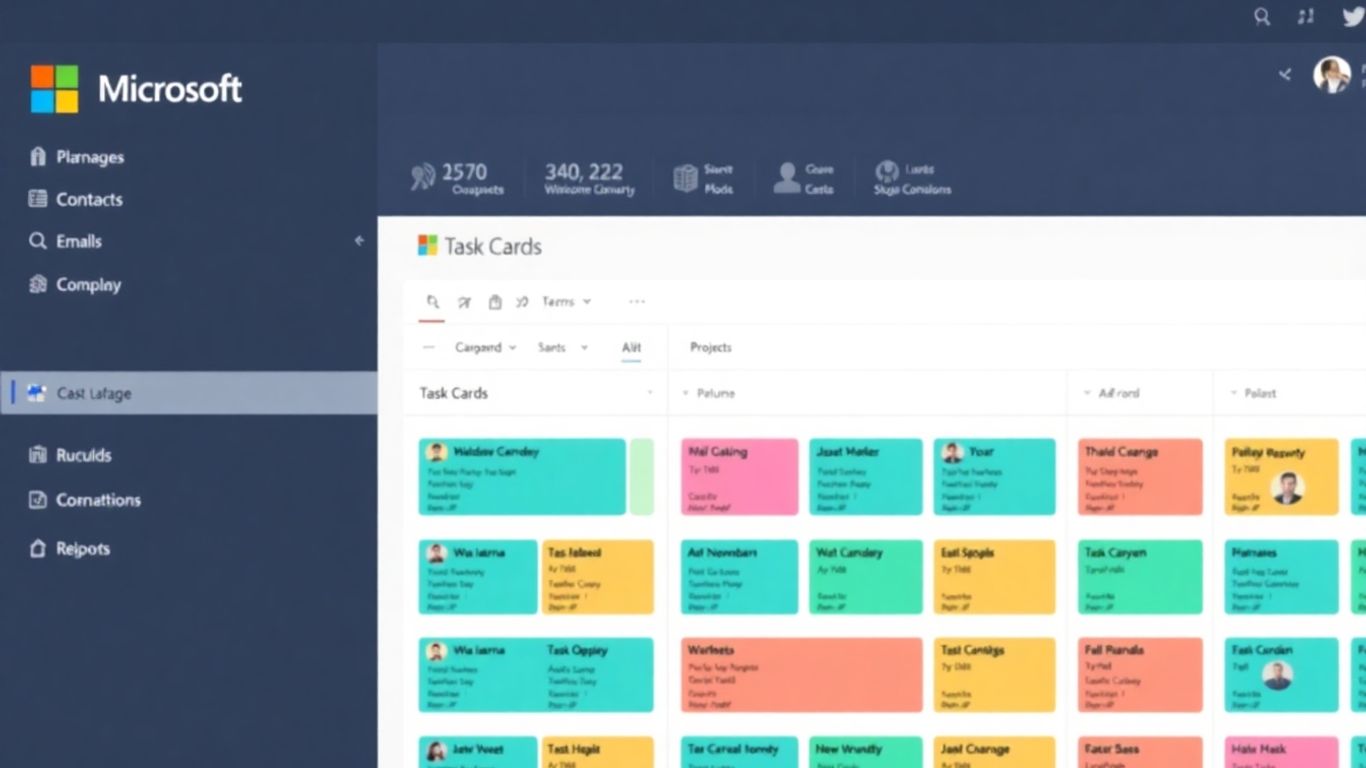
Microsoft Planner is a pretty straightforward tool that comes bundled with Microsoft 365 subscriptions. If your team is already living inside the Microsoft ecosystem, it’s a natural fit. It’s designed to be simple and visual, making it easy to get a handle on tasks without a steep learning curve. Think of it as a digital bulletin board where you can organize tasks into buckets, assign them to people, and set due dates. It’s particularly good for managing day-to-day tasks and keeping smaller projects on track.
Planner uses a Kanban-style board, which is great for seeing the flow of work. You can create different "buckets" for stages of your project, like "To Do," "In Progress," and "Completed," and then move tasks (represented as cards) between them. It’s a visual way to track progress, and honestly, it just feels good to drag a card to "Done."
Here’s a quick look at what you can do:
- Create Plans: Set up a plan for each project or team.
- Assign Tasks: Give tasks to specific team members.
- Set Due Dates: Make sure everyone knows when things need to be finished.
- Add Checklists: Break down larger tasks into smaller, manageable steps.
- Attach Files: Keep all relevant documents with the task.
- Use Labels: Color-code tasks for quick identification.
It integrates nicely with other Microsoft tools like Teams, which is a big plus if you’re already using those. You can even create a Planner tab directly within a Teams channel. This means you can discuss a task, update its status, and see its progress all in one place. It’s not the most feature-rich tool out there, especially when you compare it to some of the more complex project management platforms, but for basic task management and team coordination within a Microsoft environment, it does a solid job. It’s a good option if you want something that’s easy to use and doesn’t require a lot of setup.
Planner is best suited for teams that need a simple, visual way to manage tasks and projects, especially if they are already invested in the Microsoft 365 suite. It’s not the tool for managing highly complex, multi-phase projects with intricate dependencies, but for day-to-day operations and straightforward project tracking, it’s quite effective.
15. Google Workspace
Google Workspace, formerly known as G Suite, is a suite of cloud-based productivity and collaboration tools developed by Google. It bundles together Google’s familiar applications like Gmail, Google Drive, Google Calendar, and Google Meet, along with Docs, Sheets, and Slides for document creation and editing. It’s a solid choice for teams that are already invested in the Google ecosystem or prefer a browser-first approach to their work.
What makes Google Workspace stand out is its real-time collaboration capabilities. Multiple users can work on the same document, spreadsheet, or presentation simultaneously, with changes appearing instantly for everyone. This makes co-authoring files incredibly smooth, almost like everyone is in the same room. It’s pretty neat.
Here’s a quick look at some of the core components:
- Google Docs: For creating and editing text documents. Think of it as Google’s answer to Microsoft Word, but with a heavy emphasis on collaboration.
- Google Sheets: For spreadsheets and data analysis. It’s a capable alternative to Excel, especially for shared projects.
- Google Slides: For creating and delivering presentations. It offers a good range of templates and design tools.
- Google Drive: This is where all your files are stored. It offers generous storage space, and you can access your files from any device with an internet connection.
- Google Meet: For video conferencing and online meetings.
While the apps might not have every single advanced feature found in desktop software like Microsoft Office, they are incredibly accessible and work consistently across different operating systems and devices. Plus, the integration between the apps is generally very good. For instance, you can easily link to a Google Sheet from a Google Doc or embed a presentation into an email. It really helps keep everything connected.
The pricing is also quite competitive, especially when you consider the amount of storage and the number of tools you get. They offer different plans, so you can pick one that best suits your team’s size and needs. It’s a good way to get a lot of functionality without breaking the bank.
For organizations, setting up and managing users is pretty straightforward through the admin console. You can control access, manage security settings, and ensure your data is protected. It’s a pretty robust system for managing a team’s digital workspace. If you’re looking for a unified platform for communication and document work, Google Workspace is definitely worth a look. It’s a great way to get your team on the same page, especially if you’re already using other Google Cloud services. The free tier is also a good starting point if you just want to try it out.
16. Slack
Slack is pretty much the go-to for team communication these days, and honestly, it’s easy to see why. It feels like everyone uses it, and for good reason. It’s a messaging app that really tries to keep your team talking in one place, cutting down on all those endless email chains. You can set up different channels for specific projects or teams, which helps keep things organized. Plus, there are direct messages for one-on-one chats and even ‘huddles’ for quick audio or video calls.
It’s a fantastic tool for teams of any size that want to centralize their conversations. If your organization is still buried under emails for internal communication, giving Slack a shot could really change things. It’s designed to make talking with your colleagues feel more natural and less like a chore.
Here’s a quick look at some of its features:
- Channels: Organize conversations by topic, project, or team.
- Direct Messages: For private conversations with individuals or small groups.
- Huddles: Quick, informal audio and video calls.
- Integrations: Connects with tons of other apps you probably already use, like Google Drive, Trello, and Jira.
While it’s not the cheapest option out there, many users find the cost worth it for the experience it provides. You can personalize your settings quite a bit, which helps you focus on what’s important. It’s also got a free account option if you want to test the waters before committing.
Slack aims to be the central hub for your team’s communication, making it easier to find information and stay connected. It’s built around the idea that better communication leads to better project outcomes. The ability to search through past conversations is a lifesaver when you’re trying to recall a specific detail.
Slack also offers features that can help streamline information retrieval across different tools, making it easier for teams to stay aligned and make decisions faster. This kind of integration is key for keeping projects moving forward without getting bogged down in searching for data. You can explore how Slack AI enhances project collaboration here.
17. Notion
Notion is kind of a big deal in the productivity space, and for good reason. It’s not just a place to jot down notes; it’s a whole workspace that you can mold into pretty much whatever you need. Think of it as a digital Lego set for your projects and information. You can build databases, manage tasks, write documents, and even create wikis, all under one roof. It’s super flexible, which is its biggest strength, but it also means there’s a bit of a learning curve to get it set up just right for your team.
What makes Notion stand out is its ability to connect different pieces of information. You can link a task to a document, a meeting note to a project page, and so on. This interconnectedness helps keep everything organized and easy to find. It’s great for teams that have a lot of moving parts and need a central hub for everything.
Here are a few ways teams use Notion:
- Project Roadmaps: Map out your project’s journey from start to finish.
- Team Wikis: Create a central knowledge base for your team.
- Task Management: Keep track of individual and team to-dos.
- Content Calendars: Plan out your blog posts, social media, and more.
The real magic of Notion is its adaptability. You can start with a simple to-do list and gradually build it into a complex project management system. It’s all about how you configure it to fit your specific workflow. This means you can find free Notion templates to get started, which is a nice bonus.
While it’s powerful, it does take some time to get the hang of it. You’ll want to spend some time exploring the different blocks and databases to see how they can work for you. But once you get it dialed in, it can really streamline how your team works together. It’s a tool that grows with you and your team’s needs.
18. Airtable
Airtable is a really interesting tool that feels like a spreadsheet but is actually a lot more powerful. Think of it as a super flexible database that anyone can use, even if you’ve never touched a database before. It’s great for teams that need to keep track of all sorts of information, from client details to content calendars, and it lets you see that information in different ways.
It’s best for teams that need a highly customizable way to manage their data and workflows.
What makes Airtable stand out is its ability to adapt to almost any kind of project. You can build your own system from scratch or use one of their templates. It’s not just about storing data; it’s about making that data work for you.
Here’s a quick look at what you can do:
- Manage Projects: Track tasks, deadlines, and team assignments.
- Organize Information: Keep customer lists, inventory, or event details in one place.
- Build Workflows: Map out processes for approvals, content creation, or onboarding.
- Collaborate: Share bases with your team, set permissions, and leave comments.
It also plays nicely with other apps, which is always a plus. You can connect it to tools you already use to automate tasks and keep everything in sync. This makes it a solid choice for teams looking for a central hub for their work. You can explore Airtable’s features to see how it might fit your team’s needs.
Airtable offers a free plan, which is a good way to get started and see if it’s the right fit. For more advanced features and larger teams, paid plans are available, starting around $20 per person per month. It’s a tool that grows with you.
19. Favro
Favro is a project management tool that really tries to be flexible for different kinds of teams. It’s not just for software developers; it can work for marketing, sales, or even HR teams. The main idea is that you can build your own workflow, kind of like Lego bricks, to fit exactly how your team works. This makes it super adaptable for unique processes.
One of the cool things about Favro is its visual approach. You can see your projects laid out in boards, which can be organized in different ways. Think Kanban boards, but you can mix and match different views. This helps everyone on the team get a quick look at what’s going on without getting bogged down in details.
Here’s a look at some of its key features:
- Customizable Boards: You can create boards for different projects or teams and arrange tasks in columns that make sense for your workflow.
- Backlogs: Keep track of all your ideas and tasks that aren’t urgent yet, so nothing gets lost.
- Planning: Tools to help you plan out sprints or longer-term projects.
- Reporting: Get insights into team performance and project progress.
It also plays nicely with other tools you might already be using, which is always a plus. If you’re looking for a project management system that you can really mold to your team’s specific way of doing things, Favro is definitely worth checking out. You can find out more about its features on their [official website](206
6).
Favro aims to give teams a clear picture of their work without being overly complicated. It focuses on letting you build the system that works for you, rather than forcing you into a pre-set structure. This can be a big win for teams that feel boxed in by other, more rigid tools.
20. ProofHub
ProofHub is a project management tool that tries to keep things straightforward while still packing in the features creative teams really need. It’s got tools for discussions, tracking time, managing tasks, and even handling different versions of files. It’s particularly good for creative teams that need to review and approve visual work.
What makes ProofHub stand out is its flat pricing model. Unlike many other tools that charge you per user each month, ProofHub has a set price, which can be a nice break for your budget, especially if you pay annually. They also have project templates to help you get new collaborations up and running faster.
Here are some of the things you can do with ProofHub:
- Detailed time tracking: Keep tabs on estimates and log your hours with timesheets.
- Robust file sharing: Upload files, add comments, and mark them up for clear feedback.
- Communication tools: Discuss tasks, leave notes, have one-on-one chats, or make team-wide announcements.
- Customizable reports: Get a clear picture of how your projects are doing.
However, it’s not perfect for everyone. If you’re looking for built-in tools to manage budgets or invoices, ProofHub’s options are pretty limited. Also, the list of integrations isn’t very long, so it might not connect with all the other apps your team uses, especially for marketing or social media.
ProofHub aims to simplify project management by centralizing communication and task tracking. Its focus on proofing and approvals makes it a strong contender for teams working with visual assets, offering a straightforward way to manage feedback and revisions without getting bogged down in overly complex features.
21. MeisterTask
MeisterTask is a project management tool that really shines when it comes to visual organization and ease of use. It’s built around the Kanban board concept, which means you get a clear overview of your projects, moving tasks from one stage to the next with a simple drag-and-drop. It feels less like a rigid system and more like a flexible workspace.
What I like is how it doesn’t try to be everything to everyone. It focuses on making task management straightforward. You can create custom fields, tags, and statuses to tailor boards to your specific workflow. This makes it pretty handy for keeping track of where everything is at any given moment.
Here are a few things that make MeisterTask stand out:
- Visual Workflow: Kanban boards make it easy to see project progress at a glance.
- Customization: You can tweak boards with tags, custom fields, and statuses to fit how you work.
- Integrations: It plays nicely with other tools you might already be using, like Slack, Google Drive, and Outlook.
- Automation: You can set up rules to automate repetitive tasks, like assigning tasks to certain people when they move to a specific stage.
MeisterTask is a good choice if you’re looking for a tool that’s visually appealing and straightforward to learn. It’s great for teams that benefit from seeing their work laid out clearly and want to automate some of the more mundane parts of project management.
While it’s not packed with every single feature under the sun, it does a solid job for many common project tracking needs. It’s particularly good for teams that want a clean interface without a steep learning curve.
22. Todoist
Todoist is a pretty straightforward app for keeping track of what needs to get done. It’s great for jotting down tasks and then handing them off to the right person on your team. One of the best things about it is that it works everywhere – there are apps for pretty much every device out there, plus you can use it right in your web browser. They even give you reports on how productive you’re being, which is kind of neat.
If you’re in a smaller team and just need a solid way to manage shared tasks without getting bogged down in super complex project management features, Todoist is a good fit. It’s easy to get started with and doesn’t cost a fortune. The Pro version, which is pretty affordable, even throws in an AI assistant and keeps a full history of everything you’ve done.
Here’s a quick look at what it offers:
- Task Management: Assign tasks, set due dates, and add comments.
- Cross-Platform Sync: Access your tasks on desktop, mobile, and web.
- Productivity Reports: Get insights into your work habits.
- Integrations: Connects with other popular tools like Slack and Google Drive.
While Todoist is excellent for day-to-day task management and keeping shared to-do lists organized, it might not have all the bells and whistles for really complex, long-term projects where you need to see how everything connects. For those bigger jobs, you might need something with more advanced features for tracking dependencies and overall project flow.
Pricing: Starts at around $5 per person per month for the Pro plan.
23. Any.do
Any.do is a pretty straightforward tool that helps you keep track of your to-do lists and tasks. It’s not trying to be a full-blown project management suite, which can be a good thing if you just need something simple to organize your day or share tasks with a small group. The interface is clean, and it’s easy to get started, which is always a plus in my book. It really shines when it comes to personal organization and quick task sharing.
One of the neatest features is the "Moment" – a daily planning feature that prompts you to review your tasks for the day. It’s a small thing, but it can make a big difference in staying on track. Plus, it integrates with other apps, so you can pull tasks from different places into one spot. It’s got apps for pretty much everything, so you can access your lists on your phone, tablet, or computer.
Here’s a quick look at what it offers:
- Task Management: Create, organize, and prioritize your to-do lists.
- Reminders: Set location-based or time-based reminders so you don’t forget.
- Collaboration: Share lists and assign tasks to others for team projects.
- Calendar Integration: Syncs with your existing calendars.
While Any.do is great for personal use and small teams, it might not have all the bells and whistles for complex project management. Think of it more as a super-powered to-do list than a full project planner.
They offer a free version, which is decent for individual use, and a paid Pro version that adds more features like recurring tasks and more advanced collaboration options. It’s a solid choice if you’re looking for a tool that’s easy to use and helps you get things done without a lot of fuss.
24. Taskade
Taskade is a pretty neat tool that combines task management with team collaboration. It feels like a digital whiteboard mixed with a to-do list, and it’s designed to keep things straightforward. You can create projects, break them down into tasks, and assign them to team members. It’s especially good for teams that like to visualize their workflow.
What I like about Taskade is its flexibility. You can use it for simple to-do lists or more complex project planning. It offers a few different views, like a list, a board (which is like Kanban), and even a mind map view. This means you can pick the way that makes the most sense for your project and how your team works.
Here are some of the ways you can organize your work:
- List View: A straightforward list of tasks, great for daily to-dos.
- Board View: Think of this like sticky notes on a wall, moving from ‘To Do’ to ‘In Progress’ to ‘Done’.
- Mind Map View: This is cool for brainstorming and seeing how different ideas or tasks connect.
- Calendar View: Helps you keep track of deadlines and project timelines.
It also has features like real-time chat within tasks, which is handy for quick questions without leaving the app. You can also add subtasks, set due dates, and attach files. It’s a solid option if you’re looking for something that’s easy to pick up but still has enough features to manage your projects effectively. It’s available on web, iOS, and Android, so you can access your projects from pretty much anywhere.
25. Quip and more
When you’ve looked at all the big names and still feel like something’s missing, it’s time to explore the "and more" category. This is where tools like Quip shine. Quip is a really interesting option because it blends documents, spreadsheets, and chat into one place. It’s designed to keep your team on the same page, literally, with "living documents" that update in real-time. This means no more digging through endless email chains to find the latest version of a report or project plan.
It’s great for teams that need a central hub for information and discussion. Think of it as a shared workspace where you can write up meeting notes, track project progress with a simple spreadsheet, and then immediately discuss any changes right there in the document. This kind of integrated approach can really cut down on confusion and speed things up.
Here are a few things Quip does well:
- Real-time Collaboration: Multiple people can edit documents and spreadsheets simultaneously, seeing each other’s changes as they happen.
- Integrated Chat: Each document or spreadsheet has its own chat thread, making discussions context-specific.
- Templates: Quip offers templates for common documents like meeting agendas, project plans, and product roadmaps.
The idea behind tools like Quip is to reduce the number of separate applications your team needs to juggle. Instead of having a document editor, a spreadsheet program, and a chat app, you can consolidate much of that into a single platform. This can simplify workflows and make it easier for everyone to find what they need.
While Quip is a standout in this "and more" group, don’t forget there are other specialized tools out there too. Depending on your team’s specific needs, you might find solutions that focus on things like advanced reporting, client portals, or highly visual project timelines. It’s all about finding that perfect fit that makes your team’s work smoother and more productive. You can find more about Quip’s collaborative features on their website.
Wrapping It Up
So, we’ve looked at a bunch of ways teams can work together better. Finding the right tool isn’t just about checking boxes; it’s about making sure your team can actually get stuff done without a ton of headaches. Whether you need something simple for quick chats or a big system to manage complex projects, there’s definitely an option out there. Think about what your team really needs – like keeping track of tasks, sharing files easily, or just talking to each other more clearly. Picking a tool that fits those needs will make a big difference. It’s not just about the software itself, but how it helps everyone stay on the same page and move projects forward smoothly. Good luck finding your team’s perfect fit!
Frequently Asked Questions
What exactly is a project tracking and collaboration tool?
Think of these tools as a digital workspace for your team. They help everyone see what needs to be done, who’s doing it, and how far along the project is. It’s like a central hub for all your project-related tasks, chats, and files, making it easier to work together, especially when people aren’t in the same room.
Why are these tools so important for teams?
They’re super important because they keep everyone on the same page. This means fewer misunderstandings, less time wasted figuring out who’s doing what, and a better chance of finishing projects on time. Plus, they make it easier to share ideas and get feedback, which makes teamwork much smoother.
Can I use these tools if my team works from different places?
Absolutely! That’s one of the biggest benefits. These tools are designed for remote and hybrid teams. They let people connect, share updates, and work on tasks together no matter where they are, as long as they have an internet connection.
How do these tools help with communication?
They offer different ways to talk. You can usually chat directly within the tool, leave comments on tasks, or even have video calls. This keeps all project-related conversations in one place, so you don’t have to search through emails or separate messages.
What’s the difference between project tracking and collaboration?
Tracking is all about watching the progress – seeing if tasks are done, if deadlines are being met, and where the project stands. Collaboration is about the teamwork itself – how people share ideas, work on documents together, and communicate. Good tools do both really well.
Do I need to be a tech expert to use these tools?
Most of these tools are made to be easy to use, even for beginners. They often have simple designs and clear instructions. While some advanced features might take a little learning, the basic functions for tracking tasks and communicating are usually straightforward.
How can I tell if a tool is tracking progress correctly?
Look for features like task lists, progress bars, and visual timelines (like Gantt charts or Kanban boards). These show you at a glance what’s done, what’s in progress, and what’s coming up. The tool should also let you update task statuses easily.
What if I need to work with clients using these tools?
Some tools are specifically great for working with clients. They often let you share project progress, get approvals, and manage client feedback all in one place. This keeps your clients informed and involved without making things complicated for your team.